Guides14 Oct 20265 min read
Space vs Spacelab: run an AI workflow or build your own
A Space is a workflow behind a form. Spacelab is the canvas where you build one. Here's how each works and how to pick the right one for the job.

Space vs Spacelab comes down to running or building. A Space is a finished workflow behind a simple form: you fill in what it asks for, press Generate and get the same kind of result every time. Spacelab is the canvas where Spaces are built: you wire a photo, a prompt, a model and edits together, test the flow, then publish it as a Space. Run a Space when someone already solved the job. Open Spacelab when nobody has, or when you want it done your way.
The short version
| Use | When | What you touch |
|---|---|---|
| Space | Someone already built the flow | A form and a Generate button |
| Spacelab | You need your own flow, or several steps | Nodes and wires on a canvas |
For a single picture from one prompt, neither: use Sloosh Studio.
1. A Space: run a form
The video opens a Space called White Background Product Studio, which swaps a product photo's background for clean white. You find Spaces like it on Home and on the Spaces page. The page has two halves:
- The form, on the left. It asks only for what the Space needs. Here that's one field, a product photo upload. Fields marked * are required.
- Overview, Templates and Generations, on the right. Overview explains what the Space does and answers common questions. Templates holds results others made with it. Generations holds your runs.
Upload a photo and press Generate. The cost is on the button before you press it, and until the form is complete, the line under the button says what's missing. The result shows in Generations. You can leave the page; Sloosh tells you when the run finishes.
The canvas stays behind the form. You never have to see it, and you never pick a model or write a prompt: whoever built the Space made those choices once, so every run follows the same steps. So a Space suits a job you repeat, like product shots for a whole catalogue.
2. Spacelab: build on a canvas
Spacelab in the top bar opens a canvas. Each step is a node. The video's canvas has four:
- A Prompt that describes the scene.
- An Image Input named "Product photo".
- An Image Model that reads both.
- An Upscaler that sharpens what the model made.
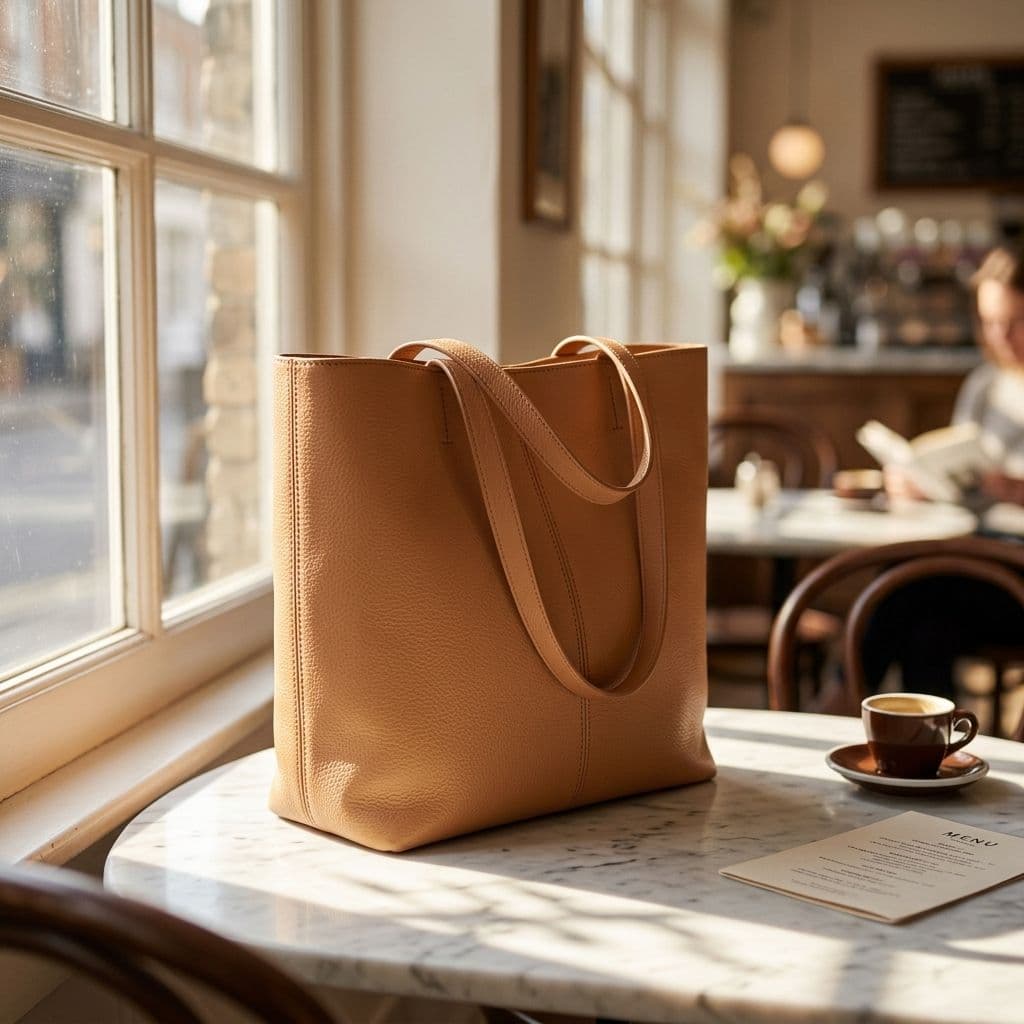
Wire the Prompt into the model's Prompt port, the photo into its reference images, and the model's image into the Upscaler. Then press Run at the bottom right. It runs every node in order and shows what one run costs first. The video's run puts a tan tote on a sunlit café table.
Here's that canvas's prompt with one line added so the bag stays as it is. Paste it into a Prompt node to try the same flow:
Place the bag from the photo on a sunlit café table by a window, morning light, shallow depth of field. Keep the bag's colour, stitching and handles exactly as they are.
3. Pick by the job
Run a Space when
- Someone already built the flow you need
- You want to fill in a form and press Generate
- You need the same look across many products
Build in Spacelab when
- The job takes several steps, such as a model then an upscale
- You want the same result every time, your way
- You want to publish it as a Space for your team
Everything you build in Spacelab can become a Space. You can start in Studio while you find the look, move the steps that worked onto a Spacelab canvas, then publish it so the rest of your team only sees the form.
4. Publish your canvas as a Space
Press Publish on the canvas.
- Details. Autofill based on my canvas workflow writes a name, slug, tagline and description from your canvas. The video's became "Sunlit Cafe Product Photoshoot". Edit anything it wrote.
- Form. This is what people fill in. Each input node becomes one field, labelled with the node's name. Mark each one Required or Optional.
A Prompt never becomes a field, so its text is the same for everyone. To let people type part of it, wire a Text Input into a Prompt variable. How Spacelab works covers the rest of the rules.
5. A Space: form and link
Once published, your canvas is a Space with its own form and a short sloo.sh/s/... link. Share the link with your team and they run it without opening the canvas. Tick Also publish to community and anyone can find it in the Community tab on Spaces; a public Space needs at least one sample output.
Going the other way works too. On a Space from another workspace, Remix copies the canvas to you, so you can open it in Spacelab and change it. If the owner ticked Hide canvas from people who use this space, Remix is locked.
Where to go next
- Build your first AI image workflow walks through a canvas and publish step by step.
- What is a space and What is Spacelab in the docs.
- Agents can run Spaces too: connect Claude to Sloosh over MCP.
- Batch and teams are on Pro and Max: see Pricing.
Questions
- What is the difference between a Space and Spacelab?
- A Space runs a workflow someone already built, from a form: fill it in and press Generate. Spacelab is the canvas where that workflow is built, node by node, and then published as a Space.
- Do I need an account to run a Space?
- Yes, you need to be signed in. If you fill in the form first, Sloosh keeps what you entered for an hour while you sign in.
- Can I change a Space someone else made?
- Not directly. Remix copies the Space's canvas into your workspace so you can change it in Spacelab. If the owner keeps the canvas private, Remix is locked.
- Can a Space run many products at once?
- Some can. Turn on Batch above the form and pick a folder with one subfolder per product. Batch needs the Pro or Max plan.
- Who can run a Space I publish?
- It goes to your workspace, so you and your team can run it from its form. Tick Also publish to community and it's listed for everyone. Nobody who runs it needs to open the canvas.
Try it in Sloosh
Open the Space from this post and run it on your own product.